

Google Developer Console (GDC) is an essential tool for developers who manage their applications on various Google platforms, including Google Play, Firebase, and Google Cloud. Monitoring app performance, user engagement, and other crucial metrics is vital for making informed decisions. Here’s a step-by-step guide on how to check installations statistics on Google Developer Console in case of missing installations.
Step 1: Accessing Google Developer Console
- Visit the Google Developer Console and sign in with your Google account credentials.
- Once signed in, you’ll be directed to the console dashboard. If you manage multiple projects, select the one for which you want to view statistics.
Step 2: Navigating to the Statistics Section
- From the Google Developer Console dashboard, select your app from the list.
- Choose the ‘Statistics‘ from the left menu.
- Here you have the option of several settings, in the ‘App statistics‘ section you can configure the report.
- Click on the ‘Installed audience‘ drop-down menu and select the following: Users -> User acquisition -> New users
- Select the countries in which you want to see installations.
Step 3: Check Statistics and Send Screenshots
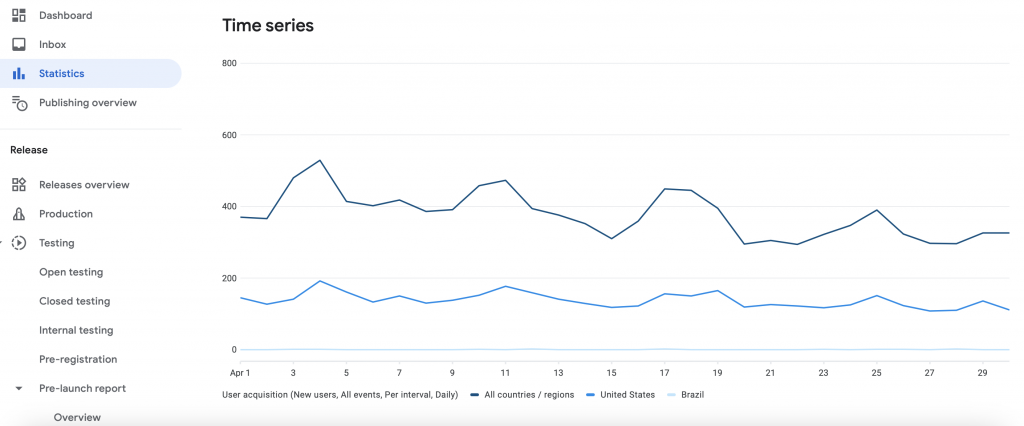
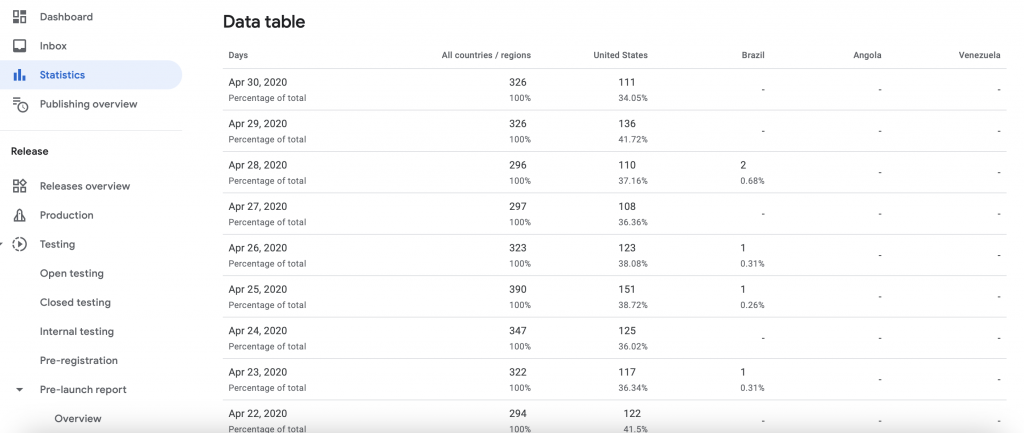
- If you see in the statistics that the installations ordered from us are missing, then make screenshots of the ‘Time series‘ graph and the ‘Data table‘ statistics below.
- Send the screenshots via email, Skype or Telegram.
- Check the screenshot examples below:
Conclusion
Statistics can be viewed in many places on the GDC interface, but this statistic is the most accurate, and due to its simplicity, it is easy to calculate if there are any missing installations.

Leave a Reply